Web Scraping in R With rvest, in 10 Minutes
Web scraping in R means pulling structured data out of HTML pages. The rvest package turns that into a three-line workflow: read_html() to fetch the page, html_elements() to target what you want with CSS selectors, and html_table() or html_text2() to extract the content.
What can you actually scrape from a webpage?
Anything that lives in the HTML source, tables, headlines, prices, links, image URLs, ratings, review text. The payoff is direct: instead of copy-pasting a Wikipedia table into Excel, you pull it into R as a data frame in one call. Let's start with exactly that.
library(rvest)

library(httr2)
library(readr)
url <- "https://en.wikipedia.org/wiki/List_of_countries_by_GDP_(nominal)"
page <- read_html(url)

gdp_tables <- page |> html_elements("table.wikitable") |> html_table()

gdp <- gdp_tables[[1]]
head(gdp, 5)
#> # A tibble: 5 x 6
#>   Country/Territory  UN region   IMF[1][13]             World Bank[14] ...
One page, one line, a real data frame. read_html() downloads the HTML; html_elements("table.wikitable") grabs every table with that CSS class; html_table() parses each one into a tibble.
install.packages("rvest"). The native pipe |> needs R 4.1+.Try it: Change the index from [[1]] to [[2]] and inspect the second GDP table. What's different about its columns?
# Your code here — reuse gdp_tables from above and grab [[2]]Click to reveal solution
gdp_tables is a list of every <table class='wikitable'> on the page, in document order, so [[2]] is the second one, usually a smaller regional or historical breakdown with fewer columns than the headline table. Swapping the index is all you need to move between tables once the page has been parsed.
How do read_html() and html_elements() work?
read_html() fetches a URL (or reads a local HTML string) and returns an xml_document, a parsed tree of the page. From that tree, html_elements() selects nodes that match a CSS selector, returning an xml_nodeset you can chain further operations on.
library(rvest)

html <- minimal_html("
  <html><body>
    <h1>Top movies</h1>
    <ul class='movies'>
      <li class='title'>Inception</li>
      <li class='title'>Parasite</li>
      <li class='title'>Interstellar</li>
    </ul>
  </body></html>
")

html |> html_elements("li.title")
#> {xml_nodeset (3)}
#> [1] <li class="title">Inception</li>
#> [2] <li class="title">Parasite</li>
#> [3] <li class="title">Interstellar</li>
minimal_html() is rvest's helper for building example pages in-memory, ideal for testing selectors without hitting the network. Use html_element() (singular) when you want just the first match; html_elements() returns every match.
read_html() fetches, html_elements() selects, and html_text2() / html_table() / html_attr() extract.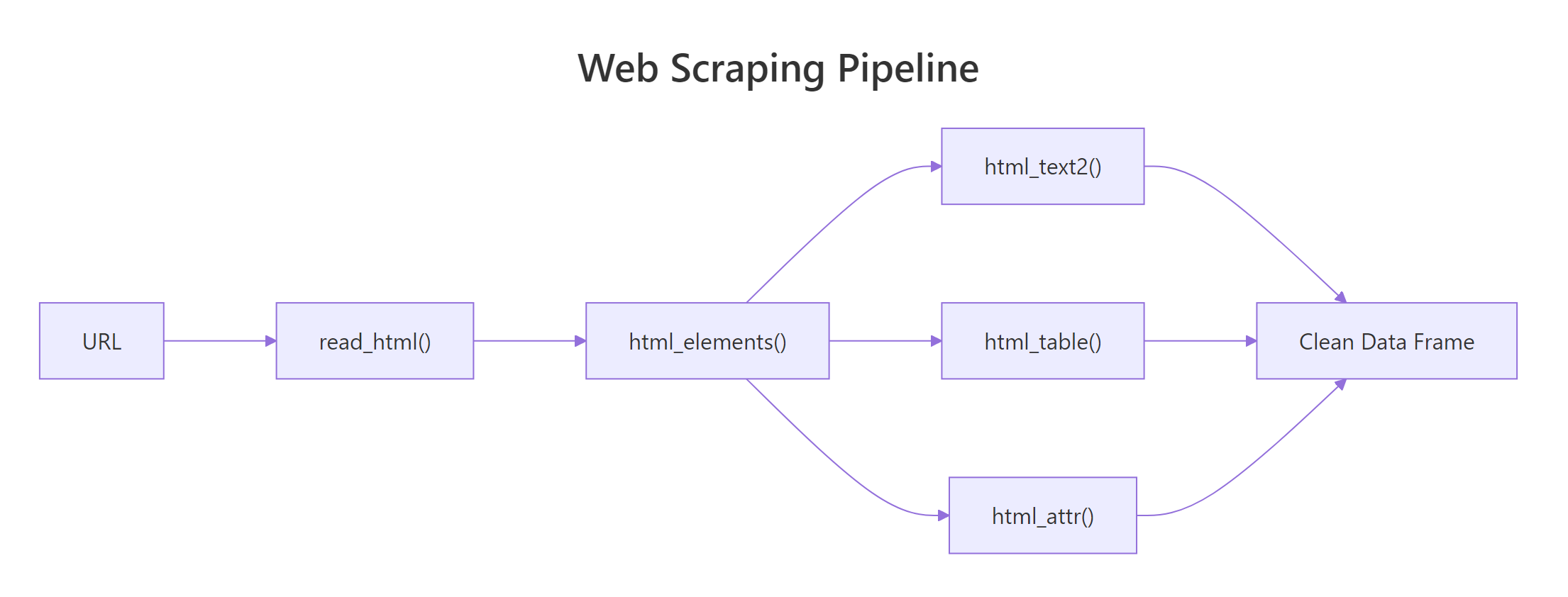
Figure 1: The rvest workflow, fetch the HTML, select nodes with CSS, extract text, tables, or attributes.
Try it: Use html_element() (singular) instead of html_elements() and explain what changes.
# Your code here — try html_element() on the same html objectClick to reveal solution
html_element() (singular) returns the first matching node instead of a node set, so you get Inception only. Use it when you know there's exactly one match (or want the first), and reserve html_elements() for lists you plan to extract from in parallel.
How do you extract tables, text, and attributes?
Three functions do 95% of the extraction work:
html_table(), turns an HTML<table>into a tibblehtml_text2(), extracts visible text (preserves line breaks; prefer this overhtml_text())html_attr("href"), pulls the value of any HTML attribute
library(rvest)

page <- minimal_html("
  <html><body>
    <h2>Books</h2>
    <div class='book'>
      <a href='/r-for-data-science' class='title'>R for Data Science</a>
      <span class='price'>$29.99</span>
    </div>
    <div class='book'>
      <a href='/advanced-r' class='title'>Advanced R</a>
      <span class='price'>$39.99</span>
    </div>
  </body></html>
")

titles <- page |> html_elements(".book .title") |> html_text2()
prices <- page |> html_elements(".book .price") |> html_text2()
links  <- page |> html_elements(".book .title") |> html_attr("href")

data.frame(title = titles, price = prices, link = links)
#>               title  price              link
#> 1 R for Data Science $29.99 /r-for-data-science
#> 2        Advanced R $39.99         /advanced-r
Each extractor is vectorized, apply it to the whole node set and you get one value per match. Wrap the parallel vectors in data.frame() (or tibble()) and you have clean tabular output.
html_text2() over html_text(). The former trims whitespace and preserves paragraph breaks the way a browser renders them. The latter returns raw text with all the original indentation noise.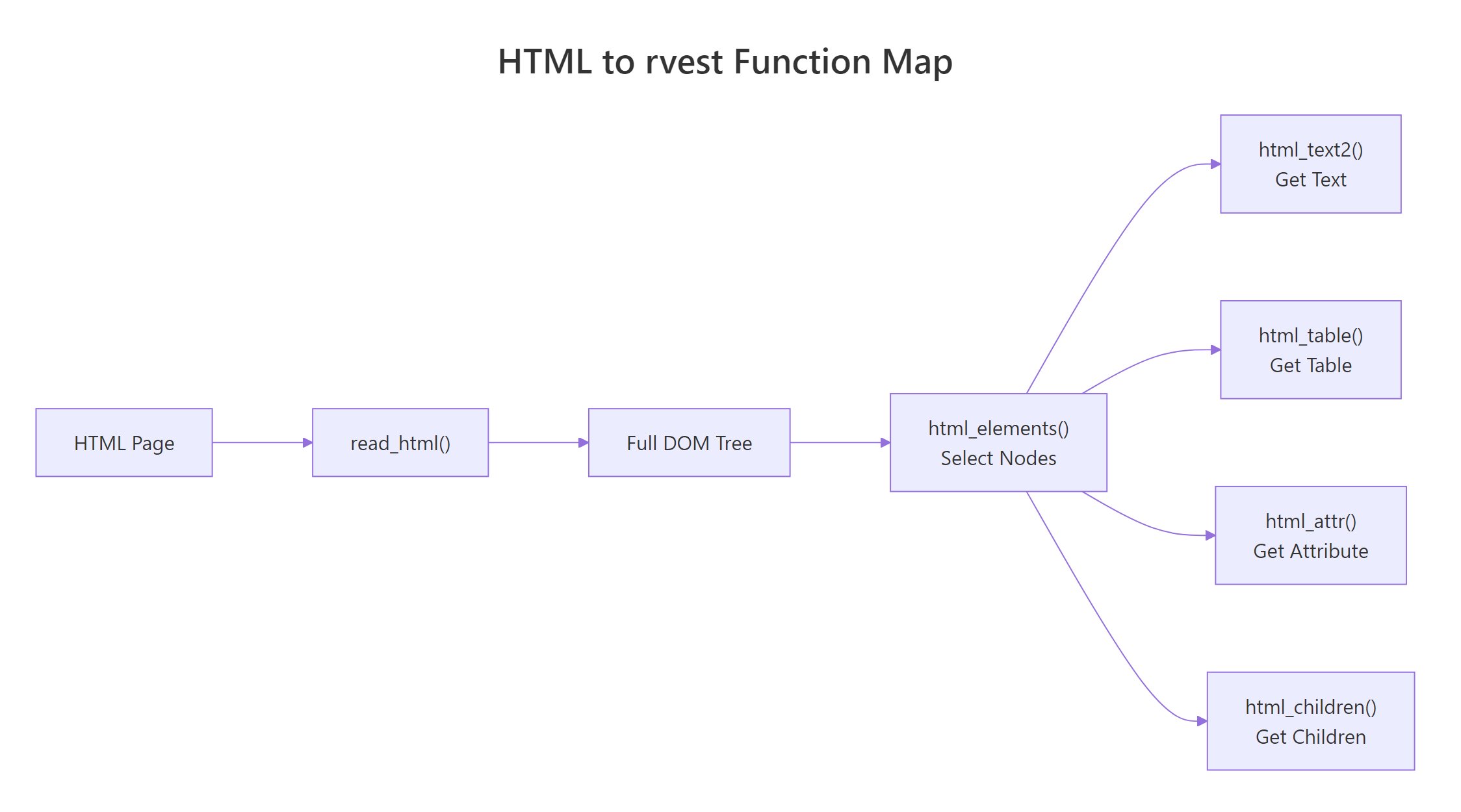
Figure 2: The small set of rvest functions you'll use in almost every scraping script.
Try it: Extract just the numeric part of the prices (strip the $) using readr::parse_number().
# Your code here — use readr::parse_number() on the prices vectorClick to reveal solution
parse_number() is purpose-built for exactly this: it scans each string, strips anything that isn't part of a number (currency symbols, commas, spaces), and returns a numeric vector. It's safer than a hand-rolled gsub() because it also handles the thousand-separator case automatically.
How do you use CSS selectors effectively?
CSS selectors are the language you use to tell html_elements() which nodes to grab. Five patterns cover almost every scraping job:
| Selector | Matches | Example |
|---|---|---|
tag |
Every element of that type | "p", "a", "table" |
.class |
Elements with a CSS class | ".price", ".review-body" |
#id |
A single element by ID | "#main-content" |
tag.class |
Tag AND class | "div.product" |
parent child |
Descendant relationship | ".card .title" |
library(rvest)

page <- minimal_html("
  <html><body>
    <div id='sidebar'><a href='/a'>Sidebar link</a></div>
    <div class='content'>
      <article><h3>Story 1</h3><p>First paragraph.</p></article>
      <article><h3>Story 2</h3><p>Second paragraph.</p></article>
    </div>
  </body></html>
")

page |> html_elements(".content article h3") |> html_text2()
#> [1] "Story 1" "Story 2"
Two practical tricks:
- Open the target page in Chrome → right-click → Inspect. The browser shows you the exact classes and IDs the site uses.
- Use the SelectorGadget bookmarklet (selectorgadget.com). Click an element, click the highlighted noise to exclude it, and it suggests the minimal selector.
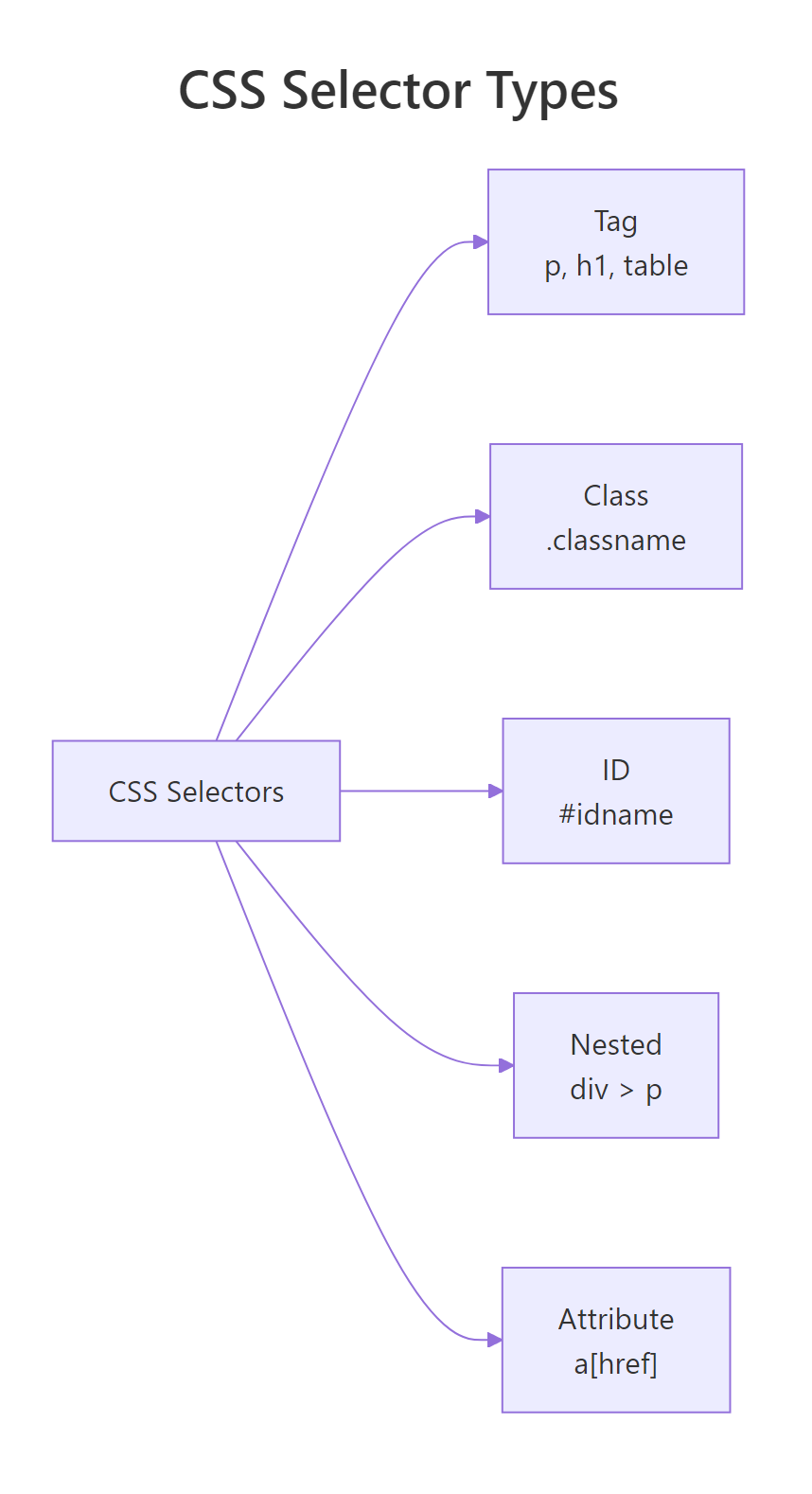
Figure 3: The handful of CSS selector patterns that cover almost every real-world scraping job.
Try it: Write a selector that grabs only the sidebar link (not the article links).
# Your code here — use an ID selector to scope the descendant searchClick to reveal solution
#sidebar a reads as "any <a> descendant of the element whose id is sidebar", the ID selector anchors the search inside the sidebar div, so article links elsewhere on the page are ignored. Using the ID instead of a class is appropriate here because sidebar is unique on the page.
How do you handle pagination and multiple pages?
Most real datasets span many pages, ?page=1, ?page=2, and so on. The solution is a loop or purrr::map() over the URL list. Build the URLs, fetch each one, extract, then stack the results.
library(rvest)
library(purrr)

base_url <- "https://quotes.toscrape.com/page/"
pages <- 1:3

scrape_quotes <- function(page_num) {
  url <- paste0(base_url, page_num, "/")
  page <- read_html(url)
  data.frame(
    quote  = page |> html_elements(".quote .text")   |> html_text2(),
    author = page |> html_elements(".quote .author") |> html_text2()
  )
}

all_quotes <- map_dfr(pages, scrape_quotes)
nrow(all_quotes)
#> [1] 30
head(all_quotes, 2)
#>                                                        quote          author
#> 1 "The world as we have created it is a process of our thi..." Albert Einstein
#> 2 "It is our choices, Harry, that show what we truly are, ...  J.K. Rowling
map_dfr() applies scrape_quotes() to each page number and row-binds the results into one data frame. The function encapsulates one page's work so the loop stays clean.
Sys.sleep(1) (or Sys.sleep(runif(1, 1, 3))) inside the loop to throttle your requests. A free quote site might tolerate rapid scraping; a real production site will rate-limit or block you.Try it: Add a page column to all_quotes showing which page each row came from.
# Your code here — wrap scrape_quotes() so it tags each row with its page numberClick to reveal solution
Wrapping scrape_quotes() in an anonymous function lets you attach the current iteration value p to the data frame before returning it. map_dfr() then row-binds every labeled page together, and the new page column lets you trace any row back to its origin for debugging or deduplication.
How do you scrape politely (robots.txt, rate limits)?
Scraping without checking robots.txt is rude and can get you IP-banned. The robotstxt package makes the check trivial, one call tells you whether a path is allowed.
library(robotstxt)

paths_allowed(
  paths  = "/wiki/List_of_countries_by_GDP_(nominal)",
  domain = "en.wikipedia.org"
)
#> [1] TRUE

paths_allowed(
  paths  = "/search",
  domain = "www.google.com"
)
#> [1] FALSE
Three rules for polite scraping:
- Check
robots.txtfirst. If the path is disallowed, don't scrape it. - Identify yourself. Set a User-Agent string so site owners can contact you. With
httr2, usereq_user_agent("my-research-bot ([email protected])")before passing the response toread_html(). - Rate-limit. One request per 1-5 seconds is a safe default. The polite package wraps
rvestwith automatic rate limiting and robots.txt checking, worth learning for any serious scraping project.
robots.txt allows scraping, a site's Terms of Service may forbid it. Commercial sites often do. Check both, especially if you plan to redistribute the data.Try it: Check whether you're allowed to scrape the CRAN task views page.
# Your code here — call paths_allowed() with the CRAN task views pathClick to reveal solution
paths_allowed() fetches cran.r-project.org/robots.txt, parses the Disallow rules, and checks whether the given path survives them. CRAN's task views page is public and unrestricted, so the call returns TRUE and you can scrape without worry, always the first check you should run against any new domain.
What about JavaScript-rendered pages?
read_html() downloads the raw HTML the server returns, not the DOM after JavaScript has run. If you open a page and see placeholder text ("Loading...") until scripts finish, rvest alone can't see the real content. You have three options:
- Find the underlying API. Open your browser's DevTools → Network tab. Most "JS-heavy" sites fetch data from a JSON endpoint. Hit that endpoint directly with
httr2, much faster than scraping rendered HTML. - Use
chromote+rvest::read_html_live().read_html_live()launches a headless Chrome session, waits for JavaScript to execute, then hands you the rendered HTML. - RSelenium, heavier, browser-automation-style. Overkill for most tasks in 2026;
read_html_live()covers the same ground with less ceremony.
library(rvest)

# Requires the chromote package: install.packages("chromote")
# session <- read_html_live("https://dynamic-site.example.com")
# session$view()                    # see the rendered page
# data <- session |> html_elements(".product") |> html_text2()
# session$session$close()Try it: Open any "JavaScript-heavy" site in Chrome DevTools → Network → filter by fetch/xhr. Can you spot a JSON response?
Practice Exercises
Capstone problems combining multiple concepts from this post.
Exercise 1: Scrape a table AND its source link
Use https://en.wikipedia.org/wiki/List_of_countries_by_population_(United_Nations). Extract the main population table as a tibble and the URL of the first footnote reference.
library(rvest)

# Your code here
Solution
library(rvest)

url <- "https://en.wikipedia.org/wiki/List_of_countries_by_population_(United_Nations)"
page <- read_html(url)

pop_table <- page |> html_elements("table.wikitable") |> html_table() |> _[[1]]
first_ref <- page |> html_element(".reference a") |> html_attr("href")

head(pop_table, 3)
first_ref
Exercise 2: Paginate a quotes site
Scrape the first 5 pages of https://quotes.toscrape.com/ and return a tibble with columns quote, author, and tags (comma-separated). Throttle with Sys.sleep(1).
library(rvest)
library(purrr)

# Your code here
Solution
library(rvest)
library(purrr)

scrape_page <- function(n) {
  Sys.sleep(1)
  page <- read_html(paste0("https://quotes.toscrape.com/page/", n, "/"))
  quotes <- page |> html_elements(".quote")
  data.frame(
    quote  = quotes |> html_element(".text")   |> html_text2(),
    author = quotes |> html_element(".author") |> html_text2(),
    tags   = quotes |> html_elements(".tags") |> html_text2() |> trimws()
  )
}

all_quotes <- map_dfr(1:5, scrape_page)
nrow(all_quotes)
Exercise 3: Polite scraper with robots.txt check
Write a function safe_scrape(url) that:
- Parses the domain and path from
url - Calls
paths_allowed(), ifFALSE, returnsNULLwith a warning - Otherwise fetches and returns the parsed HTML
library(rvest)
library(robotstxt)

# Your code here
Solution
library(rvest)
library(robotstxt)

safe_scrape <- function(url) {
  parsed <- httr2::url_parse(url)
  ok <- paths_allowed(paths = parsed$path, domain = parsed$hostname)
  if (!ok) {
    warning("Disallowed by robots.txt: ", url)
    return(NULL)
  }
  read_html(url)
}

res <- safe_scrape("https://en.wikipedia.org/wiki/R_(programming_language)")
res |> html_element("h1") |> html_text2()
Complete Example
Here's an end-to-end script that scrapes the first 3 pages of quotes.toscrape.com politely, respecting robots.txt, throttling requests, and returning a clean tibble you could save as CSV.
library(rvest)
library(robotstxt)
library(purrr)
library(dplyr)

domain <- "quotes.toscrape.com"

stopifnot(paths_allowed(paths = "/page/1/", domain = domain))

scrape_page <- function(page_num) {
  Sys.sleep(1)
  url <- paste0("https://", domain, "/page/", page_num, "/")
  message("Fetching ", url)
  page <- read_html(url)
  quotes <- page |> html_elements(".quote")
  data.frame(
    quote  = quotes |> html_element(".text")   |> html_text2(),
    author = quotes |> html_element(".author") |> html_text2(),
    page   = page_num
  )
}

quotes_df <- map_dfr(1:3, scrape_page) |>
  mutate(quote = gsub("\u201C|\u201D", "", quote)) |>
  as_tibble()

quotes_df
#> # A tibble: 30 x 3
#>    quote                                                   author            page
#>    <chr>                                                   <chr>            <int>
#>  1 The world as we have created it is a process of our ... Albert Einstein      1
#>  2 It is our choices, Harry, that show what we truly ar... J.K. Rowling         1
#>  3 There are only two ways to live your life. One is as... Albert Einstein      1
#> ...

# write.csv(quotes_df, "quotes.csv", row.names = FALSE)
Three things this script does right: it checks robots.txt before starting, it throttles with Sys.sleep(1), and it logs each URL so you can see what's happening while it runs.
Summary
| Task | Function | Notes |
|---|---|---|
| Fetch a page | read_html(url) |
Returns parsed xml_document |
| Select nodes | html_elements(css) |
Plural, returns all matches |
| Select one node | html_element(css) |
Singular, returns first match |
| Extract text | html_text2() |
Prefer over html_text() |
| Extract table | html_table() |
Returns tibble(s) |
| Extract attribute | html_attr("href") |
For links, images, data-* attrs |
| Render JS | read_html_live(url) |
Needs chromote package |
| Check robots.txt | paths_allowed() |
From robotstxt package |
| Build example HTML | minimal_html() |
For testing selectors offline |
The workflow is always the same: fetch → select → extract. Learn those three verbs and 95% of scraping jobs fall into place. The remaining 5%, JavaScript-heavy sites, logins, CAPTCHAs, are where chromote, httr2, and the polite package come in.
References
- rvest package documentation, Official tidyverse site with all function references
- rvest GitHub repository, Source code and issue tracker
- robotstxt package, CRAN page for the robots.txt parser
- polite package, Wrapper for respectful scraping
- SelectorGadget, Browser bookmarklet for finding CSS selectors
- MDN CSS Selectors Reference, Complete CSS selector syntax
- quotes.toscrape.com, Safe sandbox for practicing scraping
- Wickham, H. Advanced R (2nd ed.), Chapters on HTTP and web APIs
Continue Learning
- Importing Data in R, Load CSV, Excel, JSON, and database data into R
- dplyr filter() and select(), Clean and subset the data frames you scrape
- stringr in R, Regex and string cleanup for messy scraped text